Remote Support connects you live with a Vention Automation Expert from your pendant, so you can troubleshoot your machine together in real time, without waiting for a site visit.
Requirements for Product Operation
To use Remote Support, the following prerequisites are required:
An active subscription that includes the Remote Support feature
MachineMotion AI controller with a Vention Pendant
Internet connection on your machine
A headset, so you can hear and talk to the expert clearly on the shop floor
Note: To check that your subscription includes Remote Support, visit vention.com/subscriptions or contact your Vention Automation Expert.
Connect to the Internet
To reach the Vention team, your machine must be connected to the internet.
In the Control Center, navigate to the Settings page.
From the Network section, select and connect to the network of your choice, for example, via the Wi-Fi interface.
Request Remote Support
Put on your headset.
On your pendant, tap Support in the top-right corner.
Tap Call remote support.
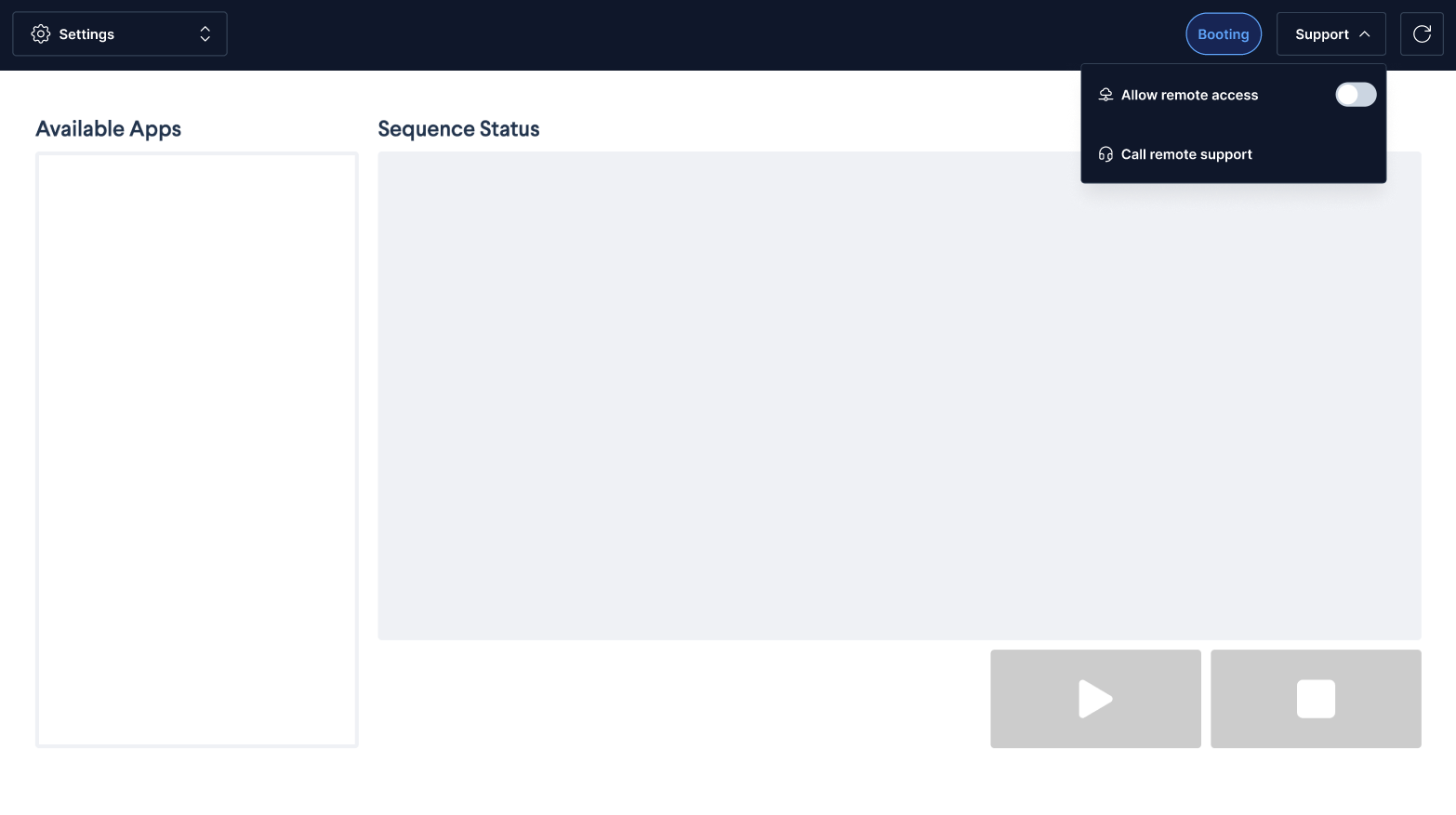
You are placed in the remote support virtual waiting room until a Vention Automation Expert joins.
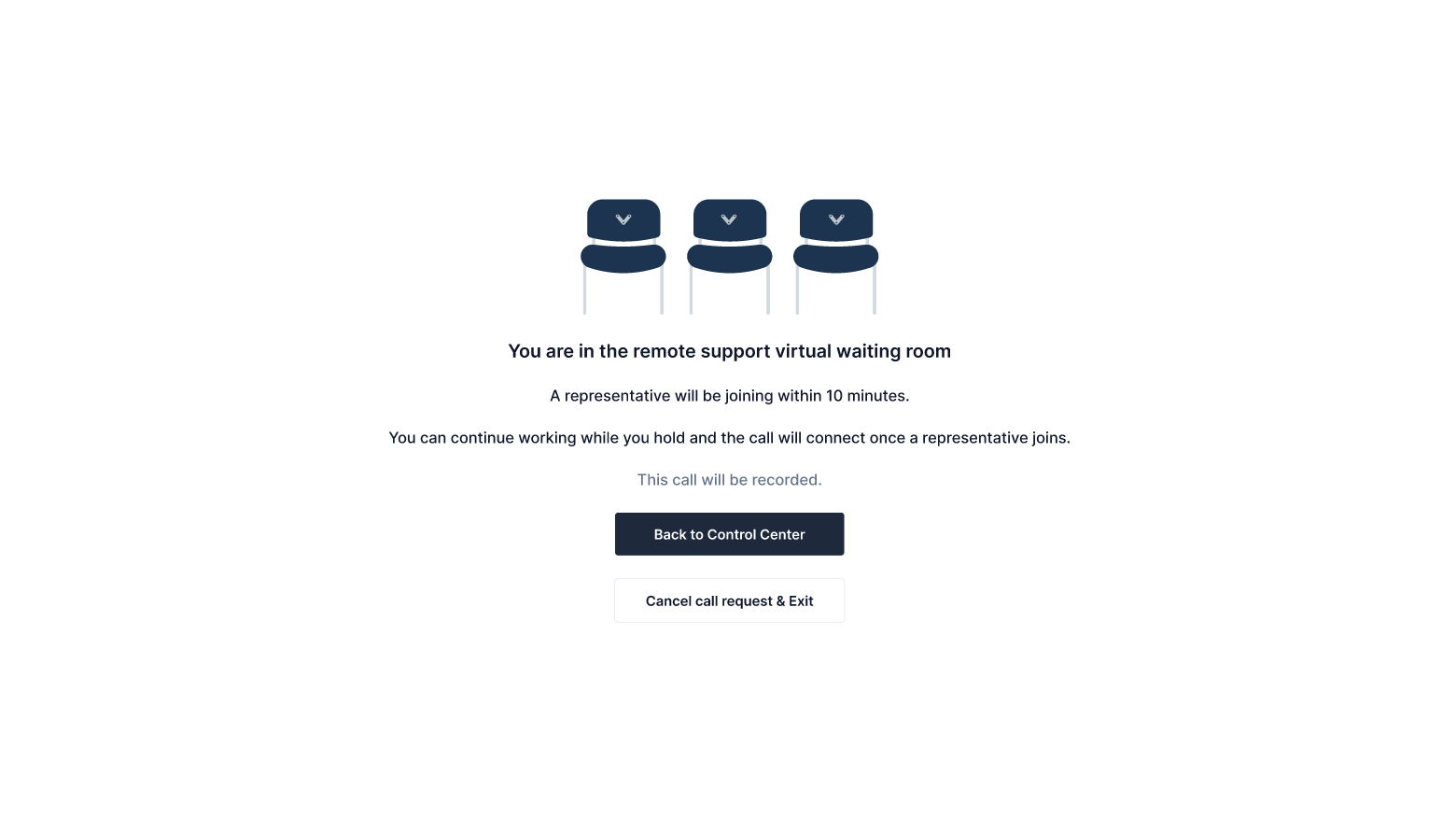
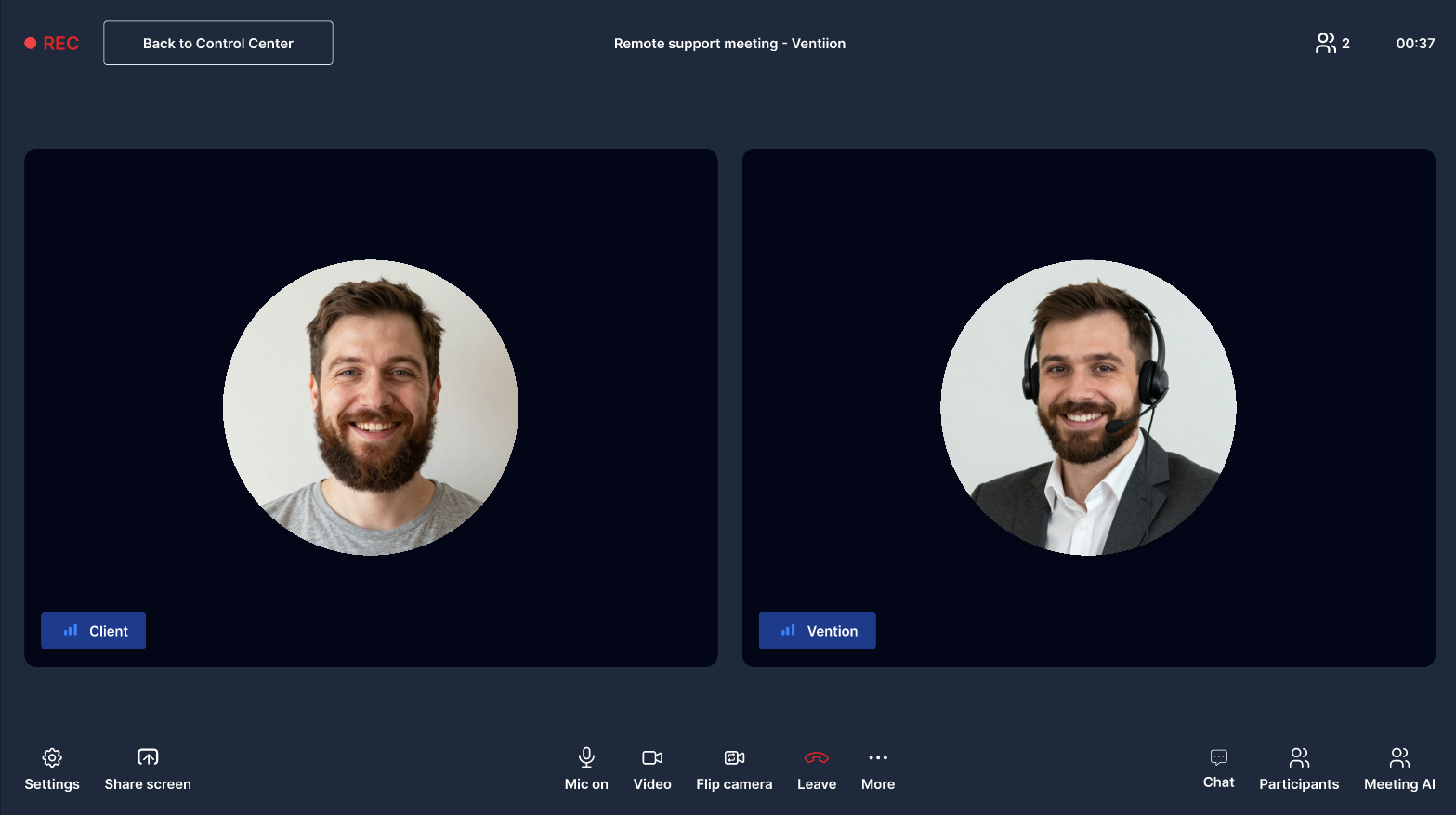
A Vention Automation Expert answers within 10 minutes, as per our SLA. The call appears on your pendant screen when they join.
Note: While you wait, tap Back to Control Center to keep working on your pendant; the call connects automatically when the expert joins. To leave the queue, tap Cancel call request & Exit. Calls are recorded.
During the Call
Once connected, you and the Vention Automation Expert can use the following tools to resolve the issue together.
Share your screen
Tap Share screen to share your pendant screen so the expert can see your machine configuration and program, and recommend changes right away.
View the expert's screen
The Vention Automation Expert can share their screen to walk you through a fix, show documentation or demonstrate settings step by step.
Show your machine with the pendant cameras
Use the pendant's front and back cameras to show the expert what is happening on the machine. Tap Flip camera to switch between the front and back cameras at any time.
Chat
Tap Chat to send messages to the expert during the call, for example to share a serial number, an error code or a link.
Remote Access
If the expert needs to work directly on your controller, they may ask you to enable Remote Access from the same Support menu. For details, see Remote Access.Machine data access
The Vention Automation Expert has access to your machine data, so they can diagnose without asking you to read values out loud. This includes:
Hardware and firmware versions;
Real-time I/O states;
The program running on your MachineMotion AI controller.
End the Call
Tap Leave at any time to close the session. Screen sharing, cameras and machine data access stop immediately.
Security
Your machine stays under your control at all times:
A session only starts when you request it from your pendant.
All connections are encrypted, and calls are recorded.
Screen sharing and cameras are only active while the call is open, and you can end the call at any time.